
software that empowers your team

software that empowers your team


(Only users that belong to the Administration Role can see the Security Manager)
1. Click the Admin Module tab.
2. Click the Security Manager
3. In the All Roles area of the Security Manager, click the New button.
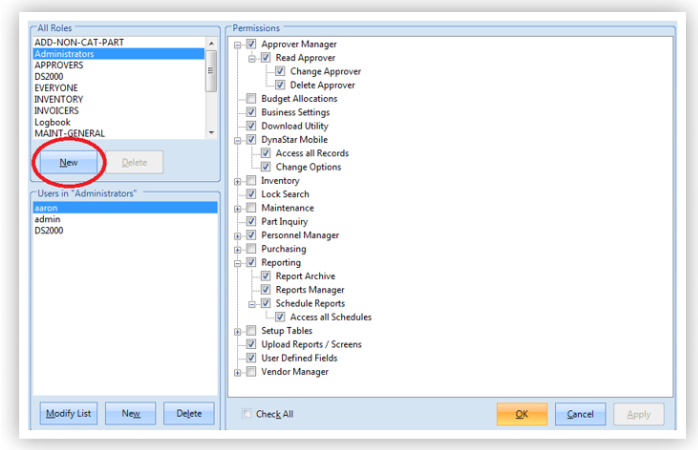
4. In the Role dialogue screen, enter the Name of the Role to be created, and
5. A brief Description of the Role.
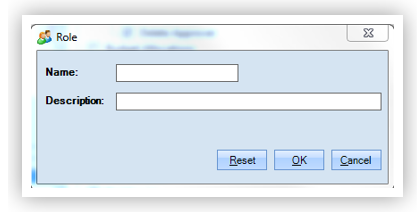
5. Repeat steps 3 to 5 to add more Role Names.
6. Once the Role Names have been added a Role needs to have permissions assigned to it
( see Editing Role Permissions)
7. When finished adding Roles, click the OK button to close the Security Manager.
TIP:
Many clients will have one Role in the database called something like Basic or Everyone. That Role would be the basic set of permissions that any user would receive if they have a logon to the application. Administrators would create all logons using this role, then add users to additional Roles where necessary.
