
software that empowers your team

software that empowers your team


(Only users that belong to the Administration Role can see the Security Manager)
1. Click the Admin Module tab.
2. Click the Security Manager
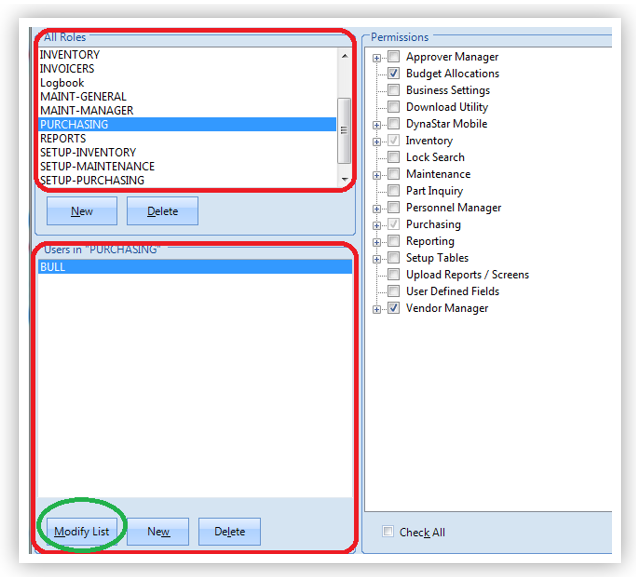
3. In the All Roles area of the Security Manager, single click the role to add the user to. The Users in "role name" will populate with all the users currently assigned to the Role highlighted.
4. In the Users in "role name" area, click theModify User button.
5. The User Picker dialogue will appear.
The left side shows the complete list of DynaStar™ Users that do not currently belong to the Role. The right side shows the list of DynaStar™ Users currently in the Role.
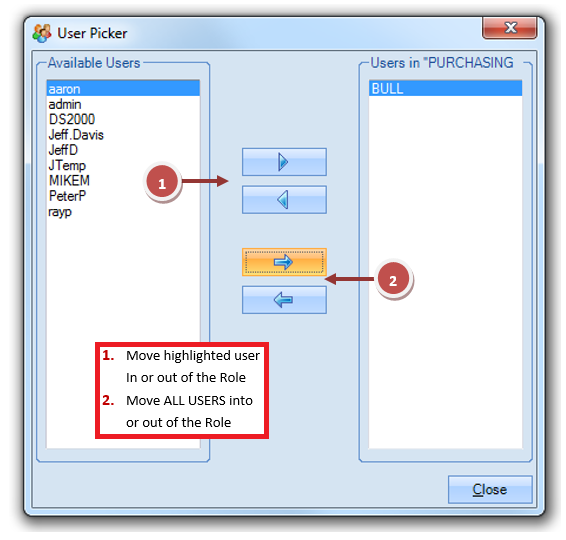
6. Use the arrows between the lists to move one or more users into or out of the Role.
7. When finished modifying the list of users for the Role, click the Close button to close the User Picker dialogue.
8. Repeat Steps 3 to 7 to modify users in other Roles.
9. When finished click the OK button to close the Security Manager.
