
software that empowers your team

software that empowers your team


DynaStar™ allows for an unlimited number of documents to be attached to records in most Managers. A document is any type of file that the computer system can understand. Documents need to be saved to a network folder. DynaStar™ just attaches the reference to where the document is located, and does not import the document into the database.
To add a document to the Document Library:
1. Click Setup Tables | System | Document Library
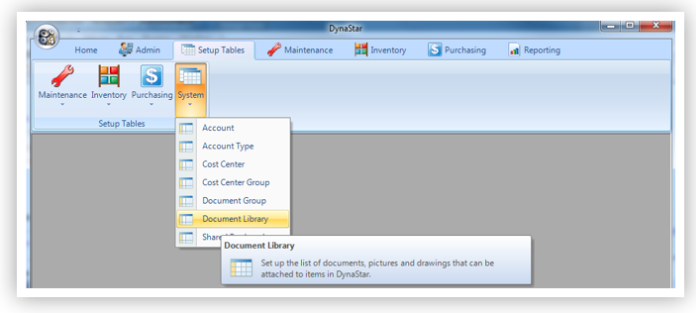
The Document Library opens with the documents listed by group, in the left window. The right window is empty. The Document Attribute fields are grayed out and contain the Path, Title, and Group details of the document at the top of the list.
2. Click the New  toolbar button or press F3 on the keyboard.
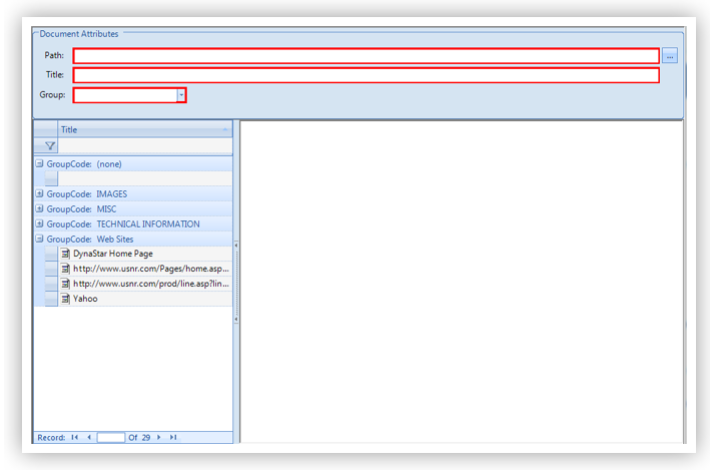
3. Enter the Path for the document, or click the [...] button to browse for it on the network. Once the document is found then click Open.
The document's Title and Path will be added automatically to the Document Attributes form area.
If the document is a website - for example, https://www.DrekiTek.com - just type the URL in the Path box. The http:// or https:// prefix is not needed.
4. (Optionally) Change the default Title if desired.
5. Select a Group to add the document to.
6. Click the Save  toolbar button or press F2 on the keyboard to save the document to the library.
