
software that empowers your team

software that empowers your team


In most DynaStar™ Managers, documents from the document library can be attached to the records.
To attach a document to a record:
1. Open the Manager to work with.
2. Search for the record to add the document to, then open it.
3. Click the Edit  button on the toolbar.
4. (Optionally) Click the Documents/Attachments tab of the record.
5. Click the Attach button on the toolbar.
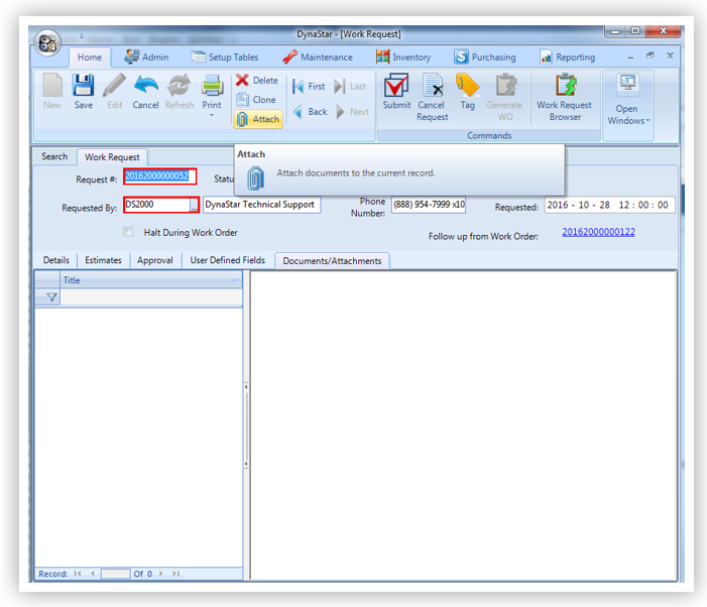
The Document Library dialogue opens
6. Select the checkbox(es) of the document(s) to be added to the record.
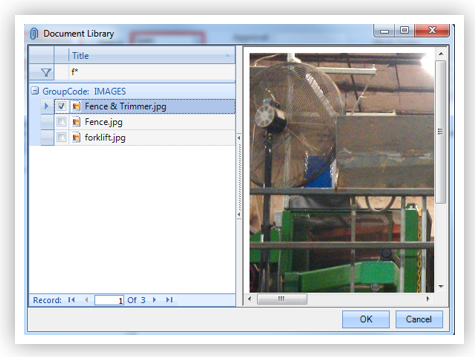
7. Click OK to attach the documents and close the dialogue.
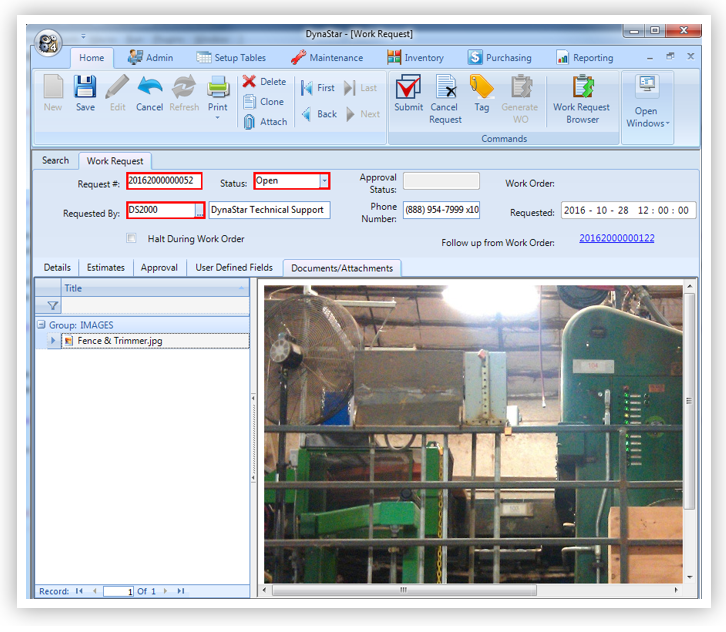
The document(s) selected are now added to the record, and listed by group, in the left window of the Documents/Attachments sub-tab. Clicking on a document in list will display the document in the right hand window of the tab.
NOTE:
Zoom in and out of the document by clicking
CTRL + and CTRL -
See more of the document by clicking the window handle between the two windows to hide the left window pane or by dragging the window divider to the left
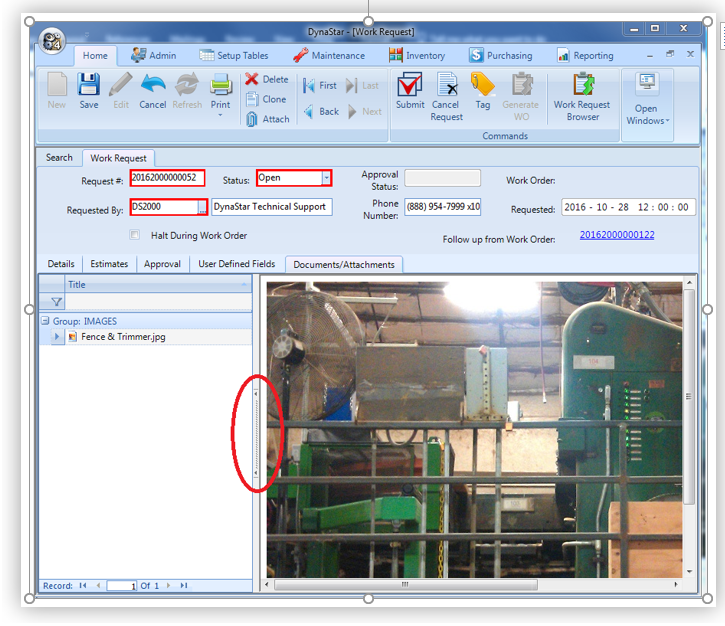
8. Click the Save  button on the toolbar or press F2 on the keyboard to save the changes to the record.
