
software that empowers your team

software that empowers your team


Users can add files to the Documents/Attachments tab in most managers by dragging and dropping files from Windows Explorer. The files will be added to the Document Library (if they don't already exist in the Document Library) and associated with the record on the record's Documents/Attachments tab.
To add a document to the Document Library:
1. Open the Manager to work with
2. Search for the record to add the document to, then open it.
3. Click the Edit  button on the toolbar.
4. Click the Documents/Attachments tab of the record.
5. In Windows Explorer, select and drag one or more files to the Title list area on the left side of the Documents/Attachments tab.
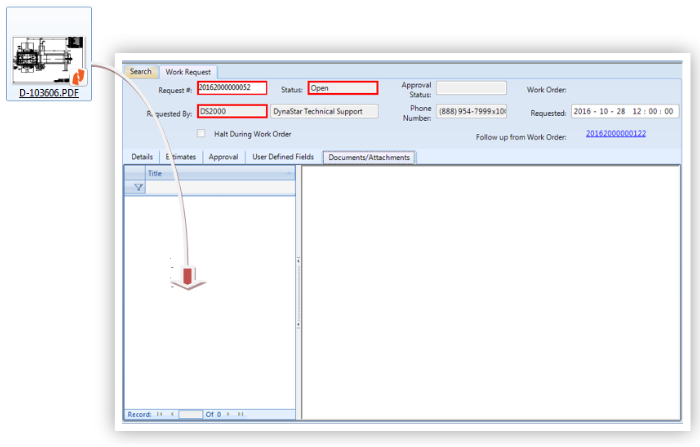
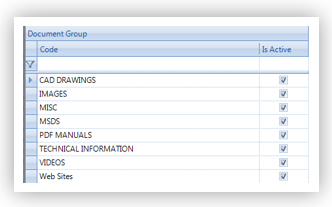
After dropping the file, a Document Group Pick List dialogue will pop up on the screen. The document(s) must be associated with a Document Group. Nothing else can be done by the user in DynaStar until a Group is selected.
6. In the Document Group Pick List dialogue, select a document group for the files(s), then click OK.
7. Click the Save  button on the toolbar, when the files are added to Documents/Attachments tab. The files will be added to the Document Library and then associated with the record in the Manager.
