
software that empowers your team

software that empowers your team


A document can be removed off a record at anytime. Removing a document from a record, does not delete the document from the document library, nor does it delete the document off of the network where it is located. Removing a document from a record just disassociates the document with the record.
To remove a document from a record:
1. Open the Manager to work with
2. Search for the record to add the document to, then open it.
3. Click the Edit  button on the toolbar.
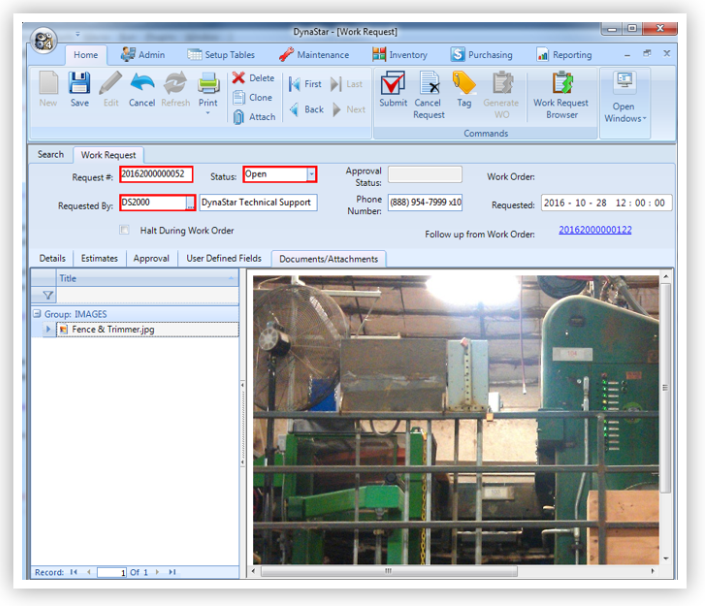
4. Click the Documents/Attachments tab of the record.
5. Search in the Title section, if necessary, to find the document to be removed.
6. Click the document to highlight it. The document will appear in the right window.
7. Press the Delete Key on the keyboard to remove the document.
8. Click the Save  button on the toolbar or press F2 on the keyboard.
