software that empowers your team

software that empowers your team


Deleting a document removes the reference to the document in the Document Library in DynaStar™. The document on the network is not deleted.
To remove a document from the Document Library:
1. Open the Setup Tables | System | Document Library.
The Document Library opens up with the documents listed, by group, in the left window. The right window shows whichever document was last selected.
2. Search for the document to delete, when found, click it, then press Delete on the toolbar.
A confirmation message appears asking to confirm deleting the document.
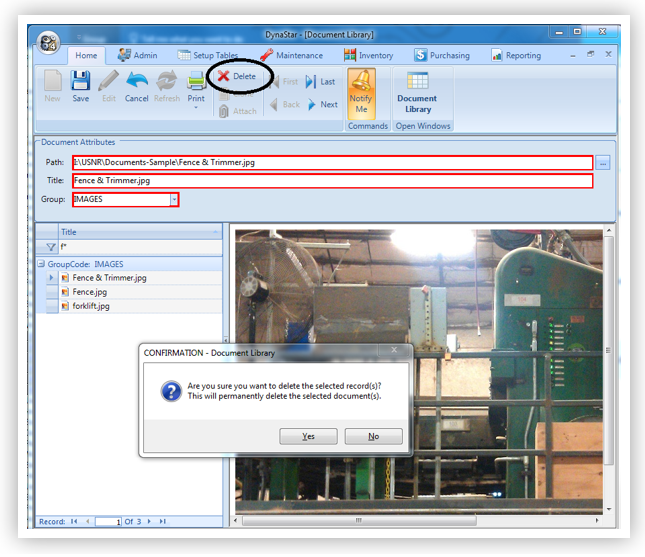
3. To delete the document, click Yes. To keep the document, click No.
Note:
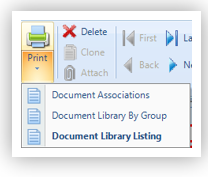
If the document is currently attached to a DynaStar™ record, it cannot be deleted until any references to it in the application are removed. To see where a document is attached, run the Document Associations Report using the Printer Icon on the toolbar.