DrekiTek Home Page

software that empowers your team

DrekiTek Home Page
English

A DynaStar​™ Manager

Every Module has Managers that are used to display and enter the information for items in the application. The diagram below shows an example of the Planned Maintenance (PM) Manager Screen.
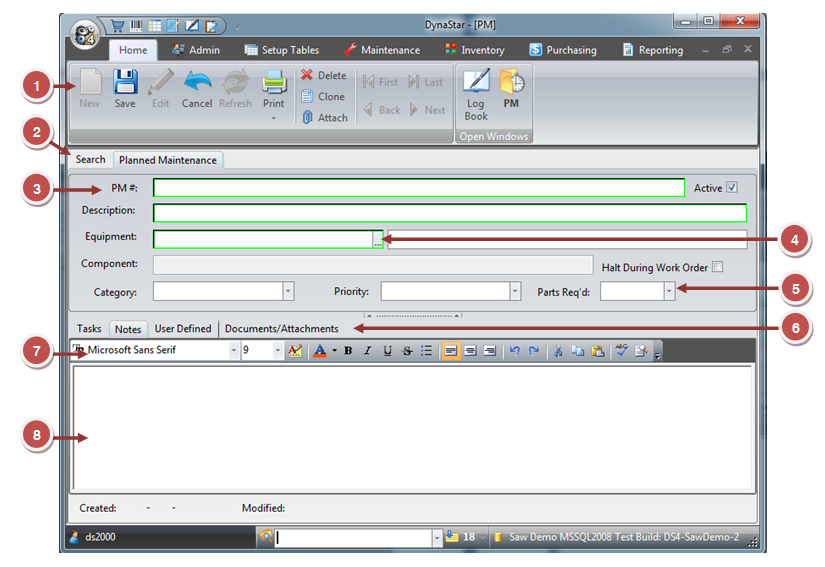
  1. The toolbar contains the buttons for the actions or functions available in a manager. Click a button in the Open Windows group in the toolbar to switch to another window.
  2. Tabs display different kinds of information. Most managers have a search tab (always the default open tab when you open managers) and one or more tabs. Some of these tabs may have sub-tabs with further categories of information. The currently open tab (and sub-tab, if applicable) is highlighted. To move between tabs and sub-tabs, simply click the tab to be viewed.
  3. Some managers have a number field that you can use to search for specific records (when not in edit mode).
  4. Some fields have a pick list button [...] which, when clicked, displays a pop up pick list that is used to locate a record related to the field.
  5. Some fields have a drop-down button which, when clicked, displays either a drop-down list, or, if the field is date related, a drop-down calendar.
  6. Click the sub-tabs to see other related information.
  7. Text boxes have a rich text toolbar that can be used to give special formatting to the text entered. 
  8. Some tabs or fields have text boxes that allow entering a long set of notes, comments, or descriptions of items in.
BACK  Printable Page