
software that empowers your team

software that empowers your team


DynaStar™ grids that have a column grouping area above the column headers, allowing the user to group the grid by one or more column headers. DynaStar™ stores each grid setting on a user-by-user basis. How one user groups their grids, does not affect another user. Each user has their own grid preferences for each grid in the application.
To change or add a column grouping to a grid:
1. Click the Column Header to use for the grouping, then
2. Drag the Column Header above the grid to the grouping row and drop it / release it
3. The Column Header will appear on the far left of the grouping row to indicate the grid is grouped by that column.
4. Click the column grouping column will sort the grouping in ascending or descending order
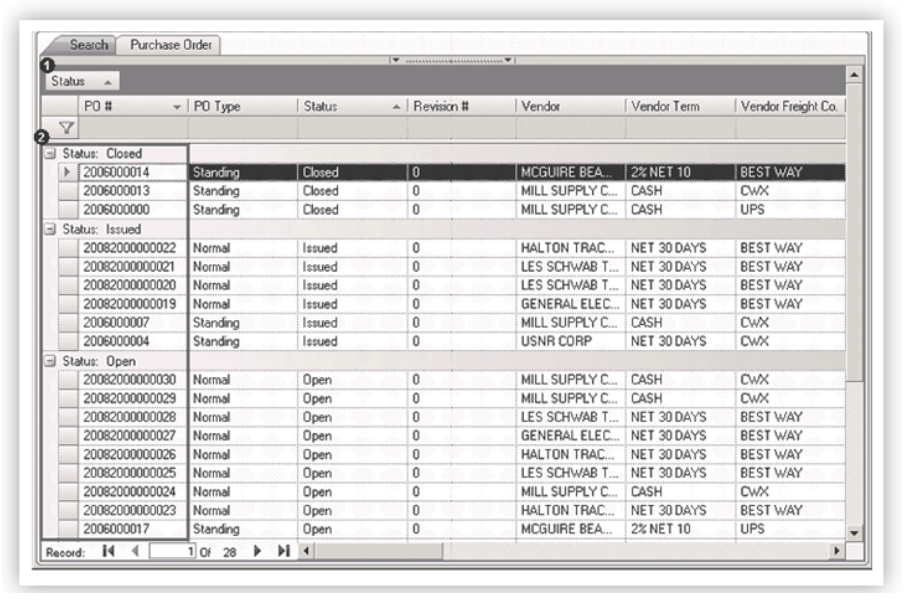
5. To add a sub-group (another grouping column), repeat Steps 1 and 2 above.
In the example below the grid is grouped by Status and Vendor.

To remove a column grouping on a grid:
1. Click the Column Header in the grouping area, then
2. Drag and Drop the Column Header anywhere on the grid below.
When a grid is grouped by any column header, a user can Collapse All Groups or Expand All Groups by right click on the grid and choosing the appropriate menu item from the pop-up menu
