software that empowers your team

software that empowers your team


DynaStar™ grid columns can be moved and rearranged on the grid. DynaStar™ stores each grid setting on a user-by-user basis. How one user arranges the columns on their grids, does not affect another user. Each user has their own grid preferences for each grid in the application.
To Move a grid column:
1. Click the column header of a column to move.
2. Press and Hold the mouse button.
3. Drag the column header to a new location on the grid.
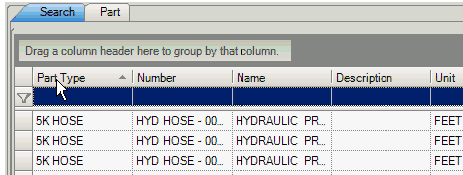
Two Red arrows will appear to indicate where the column is being moved to. In the example below the Part Type column (4th column from the left on the grid) has been dragged to the left of the grid.
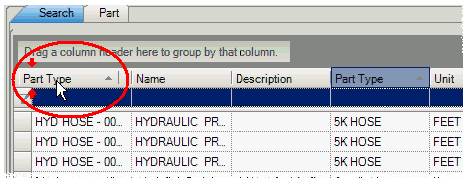
4. Release the mouse button, to move the column to its new position on the grid.
In the example below the Part Type column is now the first column on the grid.