
software that empowers your team

software that empowers your team


Grid data in DynaStar™ can be printed in exactly the way it is ordered on the grid. The grid can be printed in either portrait or landscape mode.
To print a grid:
1. Right Clickthe grid to bring up the grid context menu.
2. Select the Print Grid option.
3. A sub-menu appears that has two more options: Portrait and Landscape.
4. Select either Portrait or Landscape.
The Print Preview screen appears. The screen will be empty for several seconds as the grid pages are generated. The Generating Previews pop-up shows the progress of the page generation. When all pages have been generated, the Generating Previews pop-up will go away and the Print Preview screen will show the first page of the grid contents, with the clients logo in the top left corner.
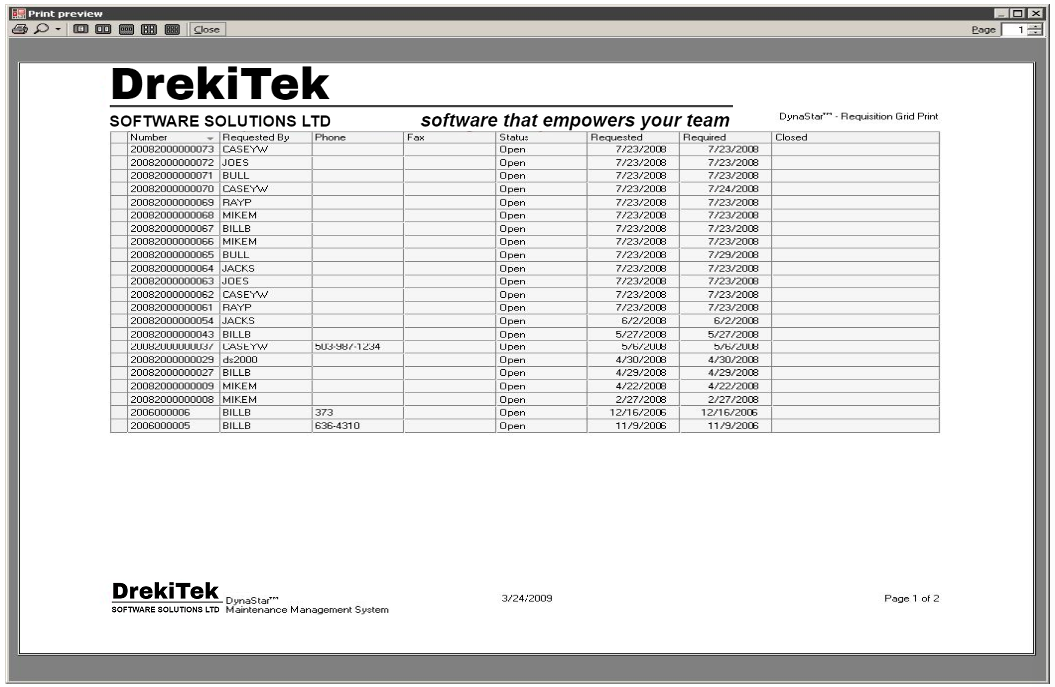
5. (Optional) Change the magnification level of the grid pages by clicking the down arrow beside the Zoom icon, then select a magnification percentage
6. (Optional) Check the other pages by either:
 clicking the up arrow in the top right hand corner, or
clicking one of the multi-page view buttons in the top
left hand corner.
6. Click the Print button to print the pages.
