
software that empowers your team

software that empowers your team


Every Manager in DynaStar™ opens up with a Search Tab. The search tab allows for finding the data in that particular manager. The diagram below shows an example of the Vendor Search Tab and the options available on the screen.
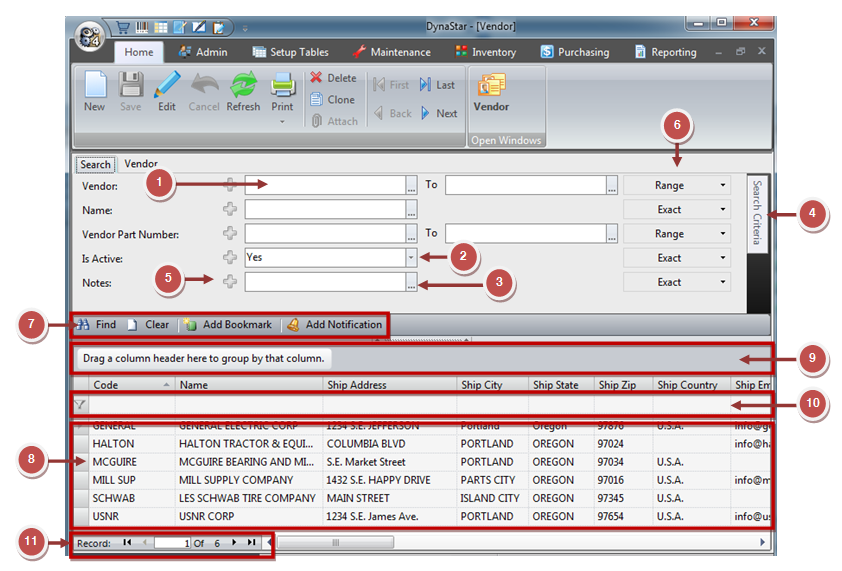
1. A search criteria field is where search criteria is entered to help find records in the Manager.
2. Adrop-down list button, when clicked will display a drop-down list of all of the items in that search criteria field. For example, clicking the Fund field drop-down list will display a list of all currencies in use in the Manager.
3. A pick list button [...], when clicked, will bring up the relevant pick list for that search criteria field.
4. The Search Criteria panel, when clicked, will slide open and shows two lists of search criteria fields - those that are currently In Use on the Search Tab and those that are not in use but are Available.
5. PLUS and MINUS buttons, when clicked will add or remove a criteria field. This allows for multiple condition matching on the same criteria field.
6. The Search option choicesfor a criteria field. When clicked will allow for changing from Range to Exact, or NULL and withdate fields, many other options.
7. The Search Tab toolbar, highlighted in red in the diagram above, contains the standard Search buttons: Find, Clear, Add Bookmark, and Add Notification. It will also display buttons for bookmarked searches that have been added by the user.
8. The Search Results grid shows the date based on the result of searches, grid grouping and any filtering.
9. The Column Header Grouping Row allows users to drag a column header from the grid to the grouping row and have the results grid show the results by the grouping(s) chosen.
10. The Filter row allows users to filter the results grid to get a subset of records. (See working with grids for more information),
11. The search grid record counter displays the count of records in the search grid and what record number the grid is currently focussed on.
