
software that empowers your team

software that empowers your team


The Part Inquiry utility is the quickest way to search for and find information on a part. This utility shows basic part information and details on the part's locations, vendors and manufacturers. Many clients do not give access to the Part Manager to all users, instead all users get access to the Part Inquiry screen to be able to locate parts and determine if there is stock available for a job.
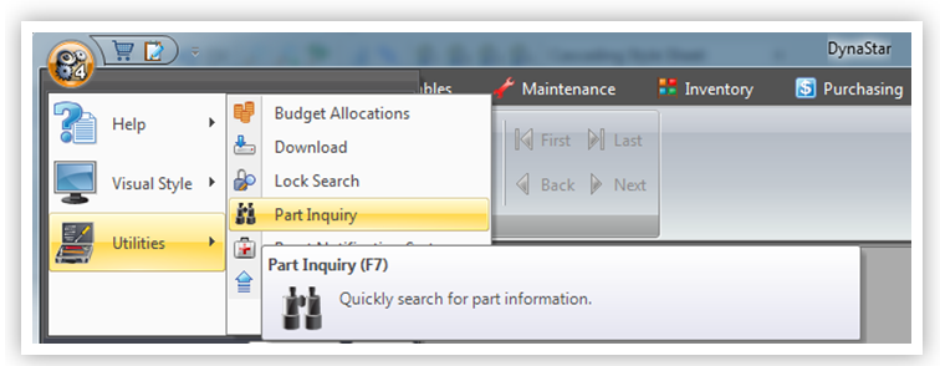
1. Click the APP Menu
2. Click Utilities
3. Click Part Inquiry OR simply Click F7 on the keyboard from anywhere in DynaStar™
4. The Part Inquiry Search Screen appears.
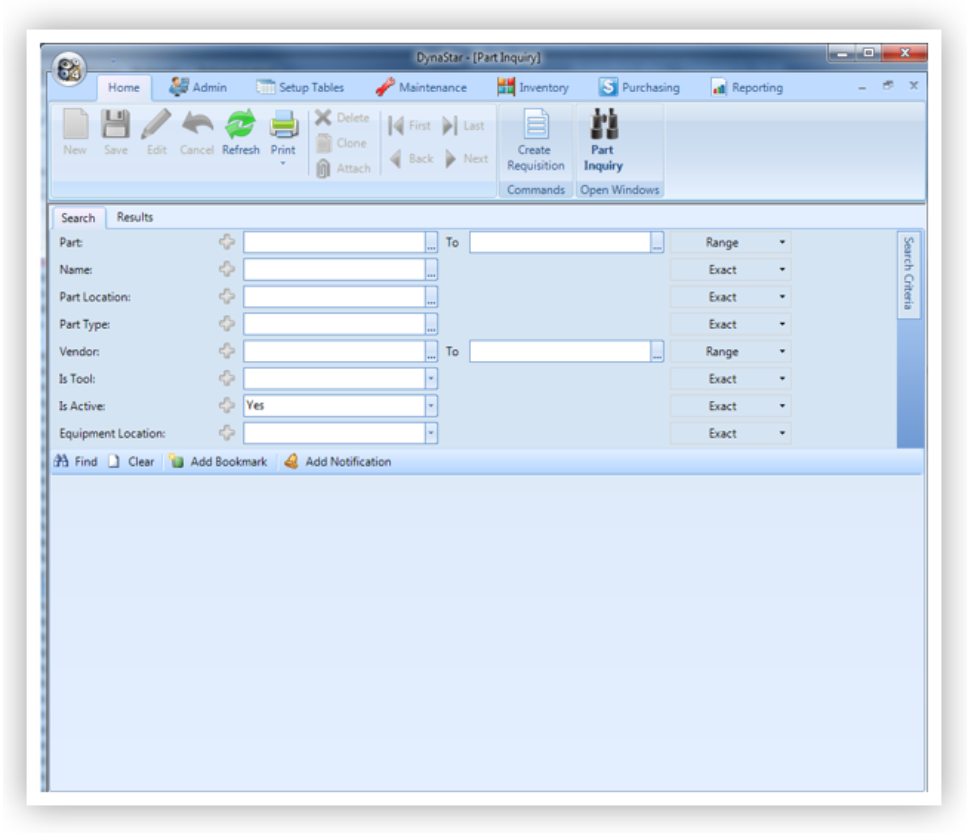
5. Fill in the search criteria fields needed, then click the Find button. The user will be moved to the Results tab with the search results displayed in the various grids.
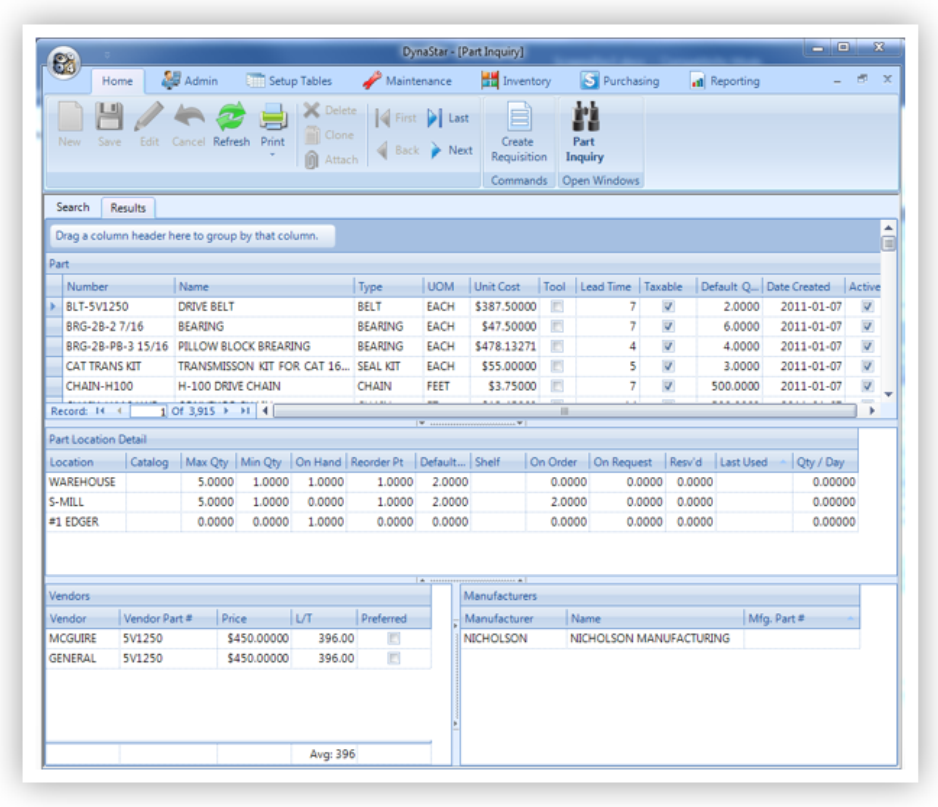
The Part Location Detail, Part Vendor, and Part Manufacturer grids show the information related to the active record in the Part grid (indicated by the arrow in the row header). In the example above the information for Part Number BLT-1V68 is shown in the Part Location Detail, Part Vendor and Part Manufacturer grids.
6. Using the Printer Icon on the toolbar, a user can print out the information for one or more highlighted parts on the grid.
7. Clicking the Create Requisition button a user can one-click requisition one or more highlighted parts on the grid.
