software that empowers your team

software that empowers your team


There are many ways to search and find records using a criteria field that has a
pick list [...] lookup. See the example below
using a Component Criteria Field.

1. Auto Fill in the field.
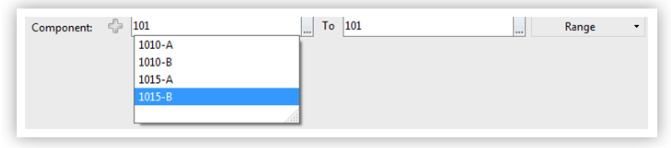
As text is typed into the criteria field, the field will auto fill a drop-down with results of existing data to match what is being typed. Whe the list in the drop-down has been filtered enough:
 use a mouse and click the item wanted, or
use the down arrow to scroll through the list, then hit Enter on the keyboard to select the record.
use a mouse and click the item wanted, or
use the down arrow to scroll through the list, then hit Enter on the keyboard to select the record.
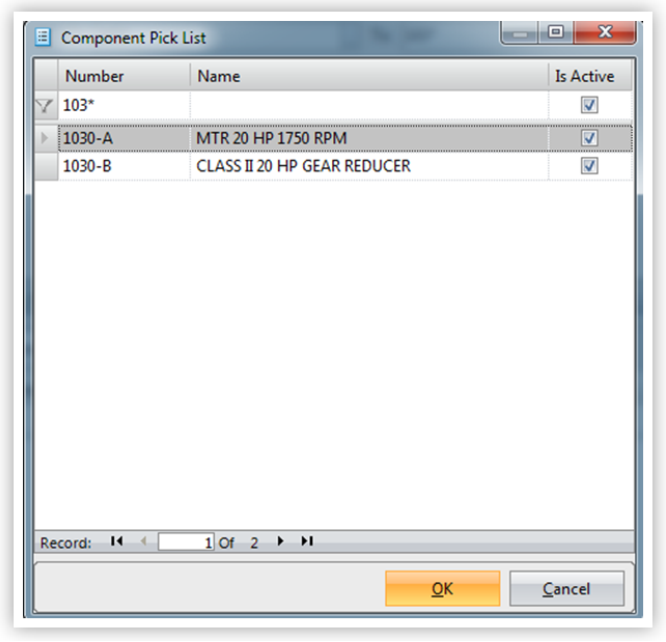
2. Auto Filtering the Pick List Lookup. Enter text into the criteria field and use the DynaStar Wildcard (*), then click the [...] Pick List button. In the example below to search for all records beginning with the number 103, enter 103*

When the Pick List opens on the screen, the filter row will automatically contain the characters typed into the field and will automatically apply the filter to the results list. In the example below the grid has been pre-filtered to only those rows starting with the characters 103. By default most Pick Lists will automatically filter the results to only active records, indicated by the check in the Active column of the filter row.
If many records appear in the results set, scroll through the records using the scroll bar on the right, or by using the scroll wheel on the mouse. To select the record:
Double Click the record, or
highlight the record, then click OK.
3. Click the Pick List [...] button to open the Pick List Lookup.
The Lookup opens with all records shown. By default most Pick Lists Lookup are automatically pre-filtered to show only Active records as shown below.
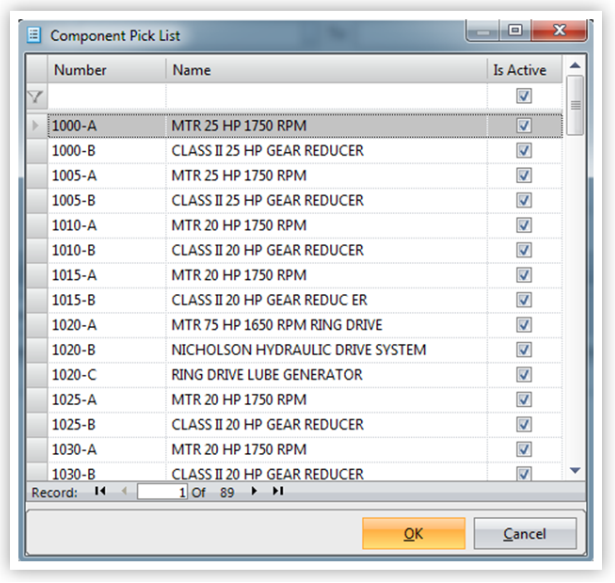
Enter a filter in the filter row to further limit the list.
Apply the filter by hitting Enter on the keyboard.
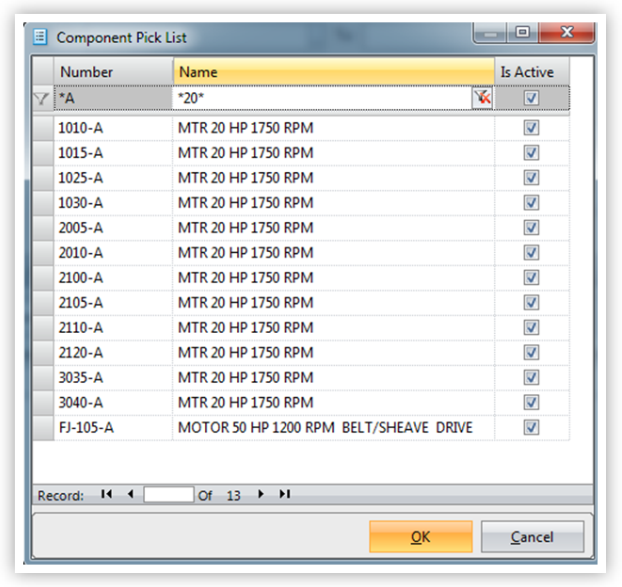
In the example below the list has been filtered to show only records ending with an A
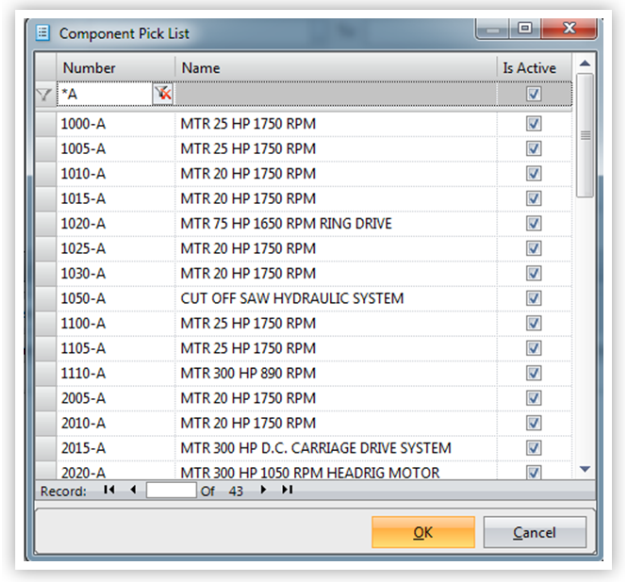
Apply another filter, if necessary to further limit the results, by entering criteria in another filter row cell.
In the example below the results list has been further filtered to only records containing 20 in the name (*20*)