software that empowers your team

software that empowers your team


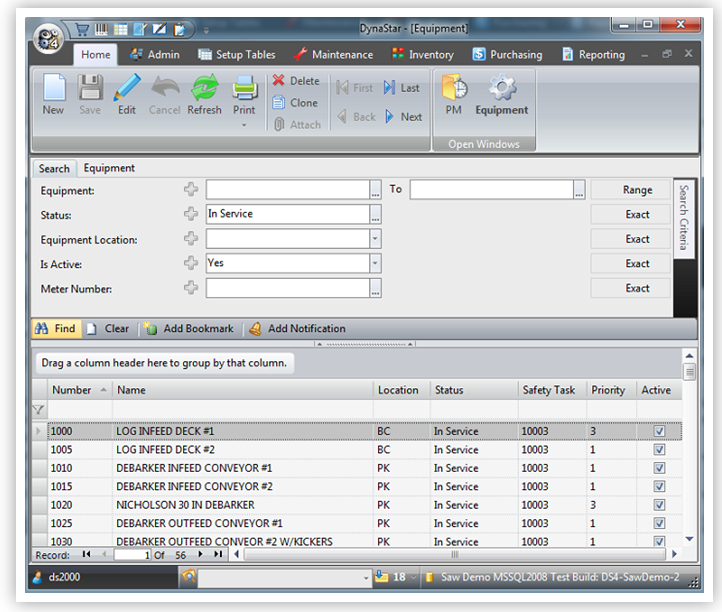
Most managers in the Maintenance, Inventory, and Purchasing modules, and some within the Setup Tables have a Search tab which makes it easy to find any of that manager's records.
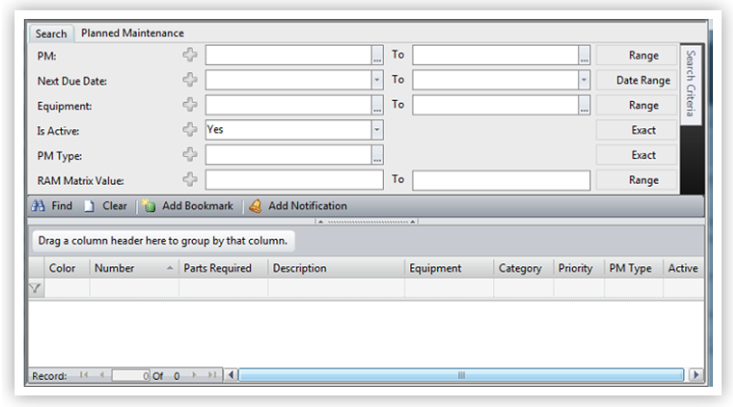
Search Tabs are divided into upper and lower areas.
The upper area contains:
 a default set of search criteria fields
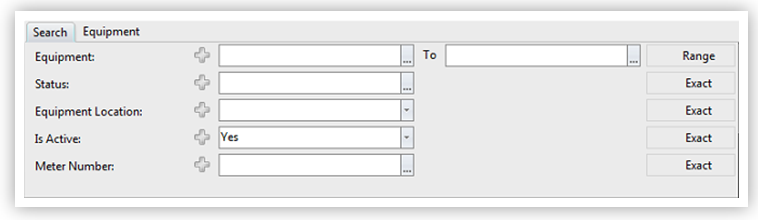
a Search Tab toolbar

a closed Search Criteria slide out panel

NOTE: Every user can change their default search criteria to suit their own needs. Search preferences are stored on a user-by-user basis, so changing anything on the Search Tab does not affect any other user's usage of the program.
If a Search Tab has the manager's records displayed, to find a specific record.
look through the list for the record by using the scroll bar on the right side, if the list is longer than the window, or
look through the list by using the scroll wheel on the mouse, or
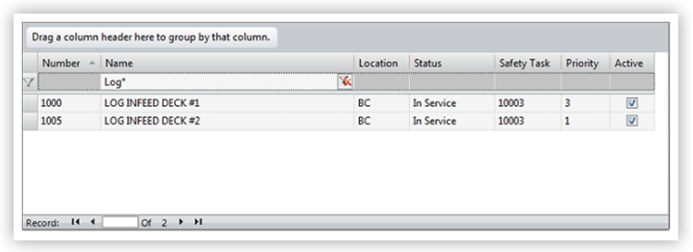
make use of the filter row above the search results grid and below the column headers to filter the list.
In the example below the filter Log* was applied to the grid to reduce the records to only those with a name starting with Log.
Note: Searches and Filters are NOT case-sensitive
If a Search Tab is initially empty, to find records:
click the Find button, to generate a list of ALL the records in a manager, or
enter search criteria, then click the Find button
The example below shows the results of a search in the Equipment Manager for equipment with Search Criteria entered of: Status "In Service" and Is Active "Yes".