
software that empowers your team

software that empowers your team


Located on the status bar to the bottom right of the DynaStar™ Application, this utility allows searching for records across the entire database, and goes to that record with a single click. Simply start typing 3 characters or more into the SMART SEARCH field and a contains search will be done bringing up links to related data.
The Smart Search box at the bottom right of the DynaStar™ Window on the Status Bar is always visible to all users.
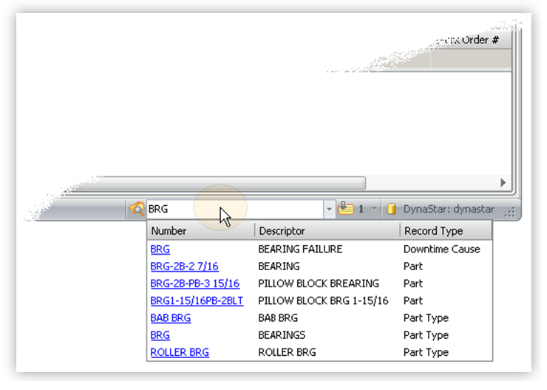
1. In the Smart Search box at the bottom right of the DynaStar™ window, start typing something to search for. After typing
a minimum of three characters, a list of results will be shown. As more
characters are typed, the result set will be futher filtered.
2. Either:
- click the mouse on the blue underlined link, or
- use the down arrow key to highlight the record
- then press Enter on the keyboard
to view the record. The record will open in the appropriate DynaStar™ Manager.
NOTE: Search results are tied to the user's security permissions. Results will show only what a user is allowed to see.
LIMITATIONS OF SMART SEARCH
Smart Search gives the user searching capabilities across the entire DynaStar™ database, however, there are a few limitations.
