
software that empowers your team

software that empowers your team


With the assigned privilege in the Security Manager, a user can upload reports (in .rpt format) or criteria screens (in .spec format) to DynaStar™ from their computer. All DynaStar™ reports are uploaded and stored within the DynaStar™ database. Once a report or a criteria/spec screen has been uploaded the report / spec screen are available to all users.
1. Click the APP Menu
2. Click Utilities
3. Click Upload Reports/Screens
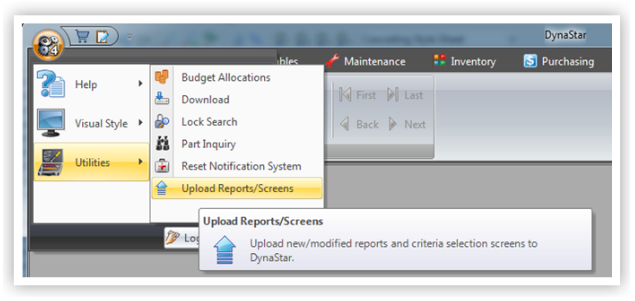
4. Browse for the report(s) or criteria screen(s) to upload into DynaStar™, then
5. Click Open
A progress bar will show at the bottom of the application and the DynaStar™ Icon will remain highlighted (coloured) while the upload is in progress. Once uploaded the report is available for all users that have access to reports.
