
software that empowers your team

software that empowers your team


The search criteria fields shown on a Search Tab can be added to, or removed from a user's screen. Each user can choose which search criteria fields are best for their scenario. How a user sets up their Search Tab does not affect any other user. DynaStar™ remembers each users Search Criteria setup for each manager on a user-by-user basis in the application.
Use the Search tab's Search Criteria Slide Out Panel to:
 Adda search criteria fieldto the Search tab
Remove a search criteria field from the Search tab
Reorder search criteria fields on the Search tab
Reset search criteria fields to the default display on the Search tab
Adda search criteria fieldto the Search tab
Remove a search criteria field from the Search tab
Reorder search criteria fields on the Search tab
Reset search criteria fields to the default display on the Search tab
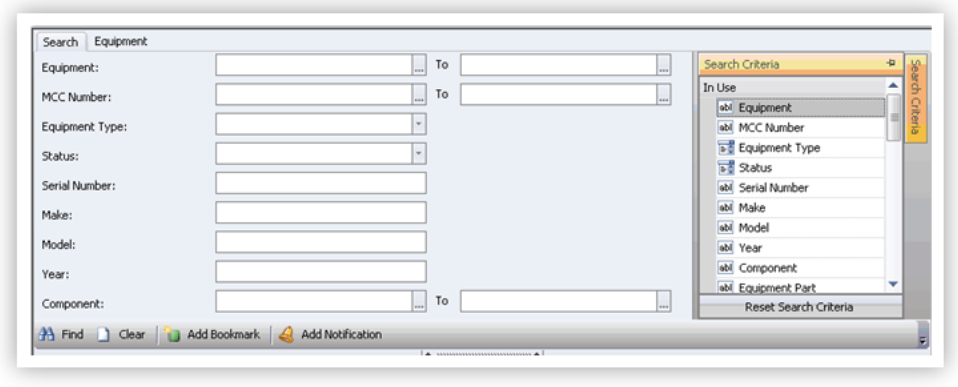
The screenshot below shows a manager with a typical Search Criteria Panel opened on the right of the screen. The fields listed in the panel fall into two sections: In Use, and Available. The fields in the In Use section are the fields currently being used on the Search Tab. The fields in the Available section (scroll down the panel to see the available section if necessary) are the fields that could be used on the search tab for searching data.
To Add a Search Criteria Field to the Search Tab:
To Remove a Search Criteria Field from the Search Tab:
To Change the Order of a Search Criteria Field on the Search Tab:
To Reset the Search Criteria Field on the Search Tab to their default setting:
